With Imported lists, you can input or import a CSV of domains, and export a spreadsheet containing Intricately data for those domains.
Enrichment is valuable when you need:
-
To prioritize a list of leads or accounts based on the technology used
-
To see which leads already use a competitor
-
To sort a list of leads based on spend
-
To see when a lead added the competition
Example of an enriched list:

This guide covers:
Running a List Enrichment
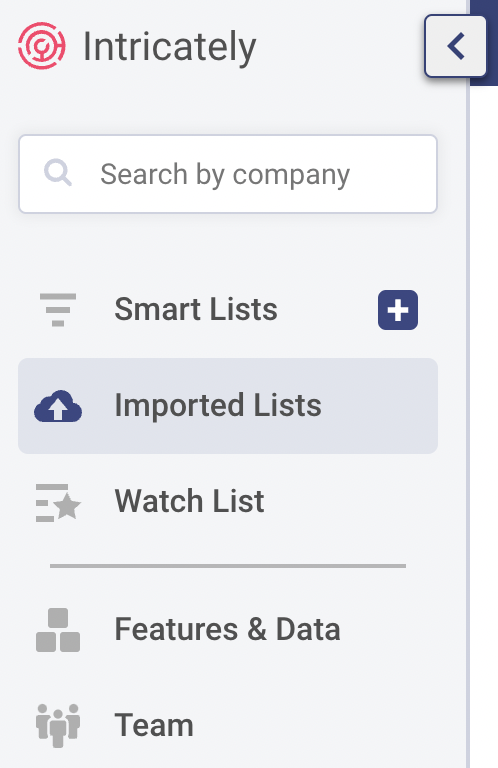
1. Select Imported Lists from the sidebar
2. (Optional) Select Products or Providers you want to include data for
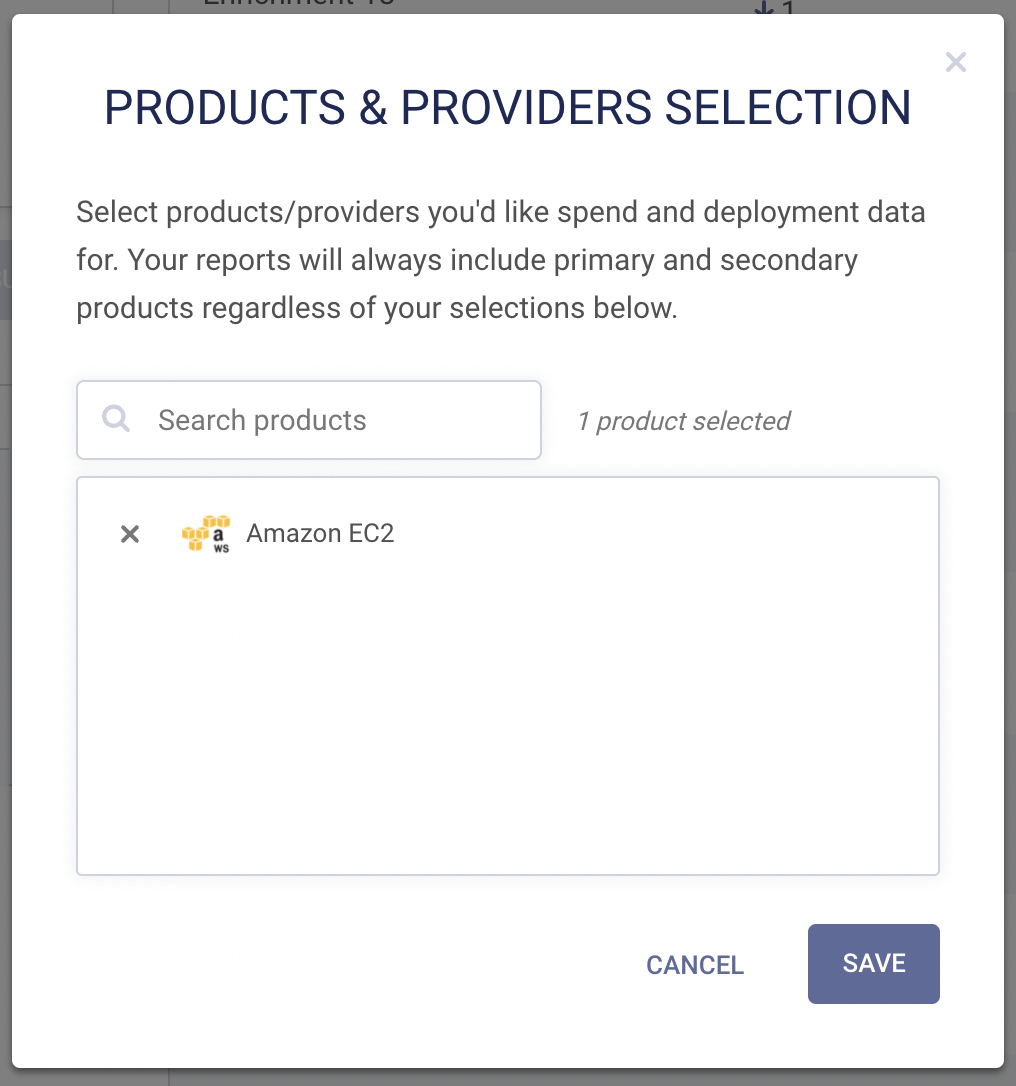
By default, we'll always include data for the Primary & Secondary products in each Product Category. However, if there are specific Products or Providers you're interested in, you can select them to ensure that they appear in your export file:
-
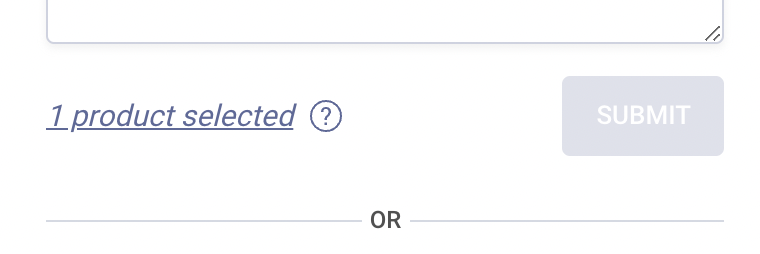
Click the Select Products button. Using the search bar, add the products and providers you would like to see data for, and then select Save.
- All subsequent exports will include data for the products & providers you've selected. The exact fields included will depend on your selections and the data included in your plan:
|
Field |
Available for Products? | Available for Providers? | Required Data Edition |
|---|---|---|---|
| Spend Tier | ✔ | ✔ | Base |
| Detailed Spend | ✔ | ✔ |
Detailed Spend |
| Deployment Date | ✔ | x |
Historical |
You can edit your product & provider selections at any time! However, note that any changes you make will only take effect on the next export.
3. Input your list
- Your list should include website URLs and/or email addresses.
- You have two input options: inputting a text list, or uploading a CSV
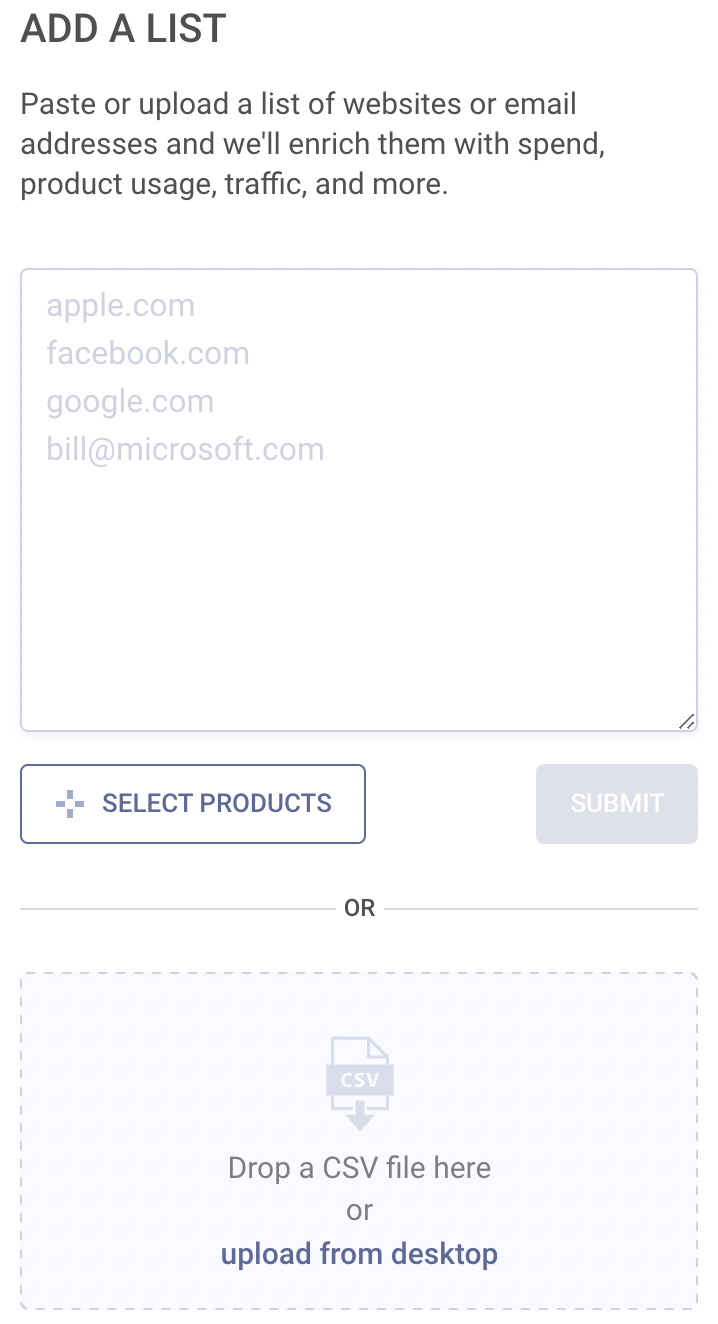
- If inputting a list into the box: type or paste the list into the box, with one domain on each row
- If uploading a CSV:
- Your file must be CSV format
- Your file must include a header row with column labels
- Your file must include a column with the domains, in the form of website URLs or email addresses.
- If you're uploading a file with multiple columns, make sure that first column with domains contains the domains you actually want enriched
4. Export your enriched list
Initiating the export is easy:
- If you input the list: click SUBMIT
- If you uploaded a CSV: the file will begin processing automatically
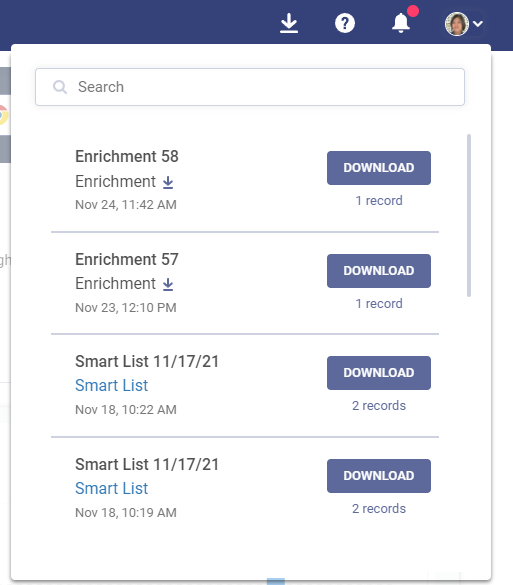
The system will then work on enriching your list. This can take some time, depending on the domains included and the length of the list. We'll email you when it's complete! You can also monitor the progress of your export:
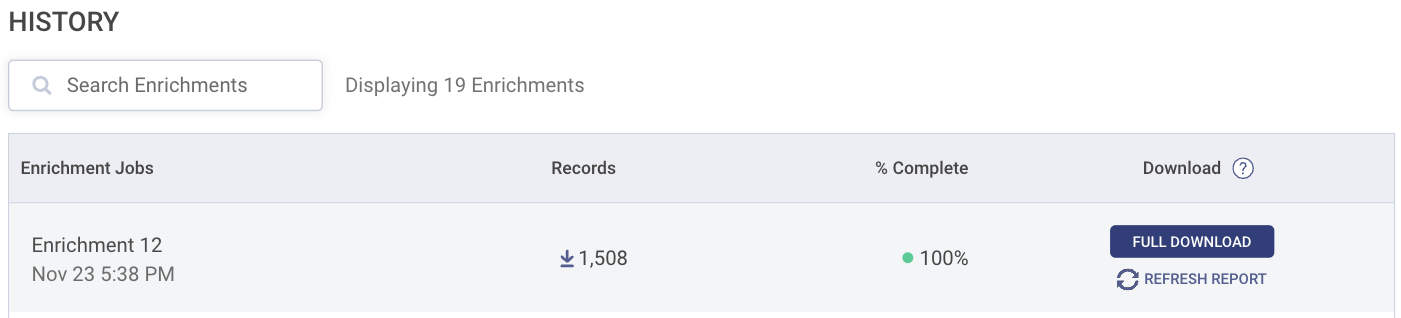
- On the table in the Imported Lists page
- From the Export Manager in the top navigation
Managing Enrichments
Refreshing Data
Need refreshed data for a previously uploaded list? Click Refresh Report on the list you're referencing. This will use Export Credits and deliver a fresh report.
Renaming Enrichments
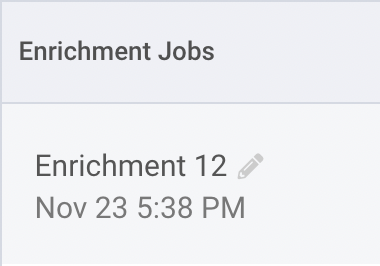
You can edit the name of an Enrichment Job by hovering over the name and clicking the pencil icon that will appear to the right.
FAQ & Troubleshooting
Why is my enrichment incomplete, or taking a long time to process?
Sometimes you might upload a list and find that it is taking longer than usual to process, or it has timed out. This is could be due to:
- Invalid URLs in your list
- URLs that are brand new to Intricately!
In either care, we are either unable to gather the information you requested, or we are taking a little longer than usual to compile the data. You will be able to download the partial list, and still processing records will be marked as such in the first column.
You can either re-run just these impacted records or reach out to us at support@intricately.com for help.
My enrichment is labeled "Partial Download." What does that mean?
Sometimes, processing the entire enrichment can take a long time to process! In these cases, we'll make a Partial Download available. You can download this file, and it will include data for all the domains the system has already completed enriching.
Don't worry-- if you download a Partial Download, you can always come back later and download the file again once more domains are done processing.
What do the statuses in my enrichment file mean?
-
Processing- we are currently in the process of trying to assemble a company report for this record -
No Data Available- invalid domain (i.e.sdiogjsidog not a domain) -
Processing Incomplete- we were in the process of trying to assemble a company report for this record when the timeout limit was reached. (Enrichments are set to time out after 1 hour) -
Plan Limited Exceeded- the record was not processed because the user's credit limit was reached -
Completed- record enrichment is complete
I'm having trouble uploading my list!
If you're trying to upload a file to enrich, but you're receiving an error, try confirming the following and seeing if it resolves the issue.
Make sure that your file:
- Is in CSV format (not XLSX!)
- Has column headers
- Has at least one column that contains domains (can be in the form of email addresses or website URLs)
- If the file contains multiple columns with domains, make sure that the first column with domains (starting from left) is the column you want to match on for enrichments
If you've confirmed that your file meets all these requirements and you're still having problems, you can reach out to us by submitting a ticket via the Help widget or emailing us at support@intricately.com