Managing Team Members and Licenses
Last updated: December 17, 2025
In this article, we’ll walk through how to manage users and monitor usage in Intricately:
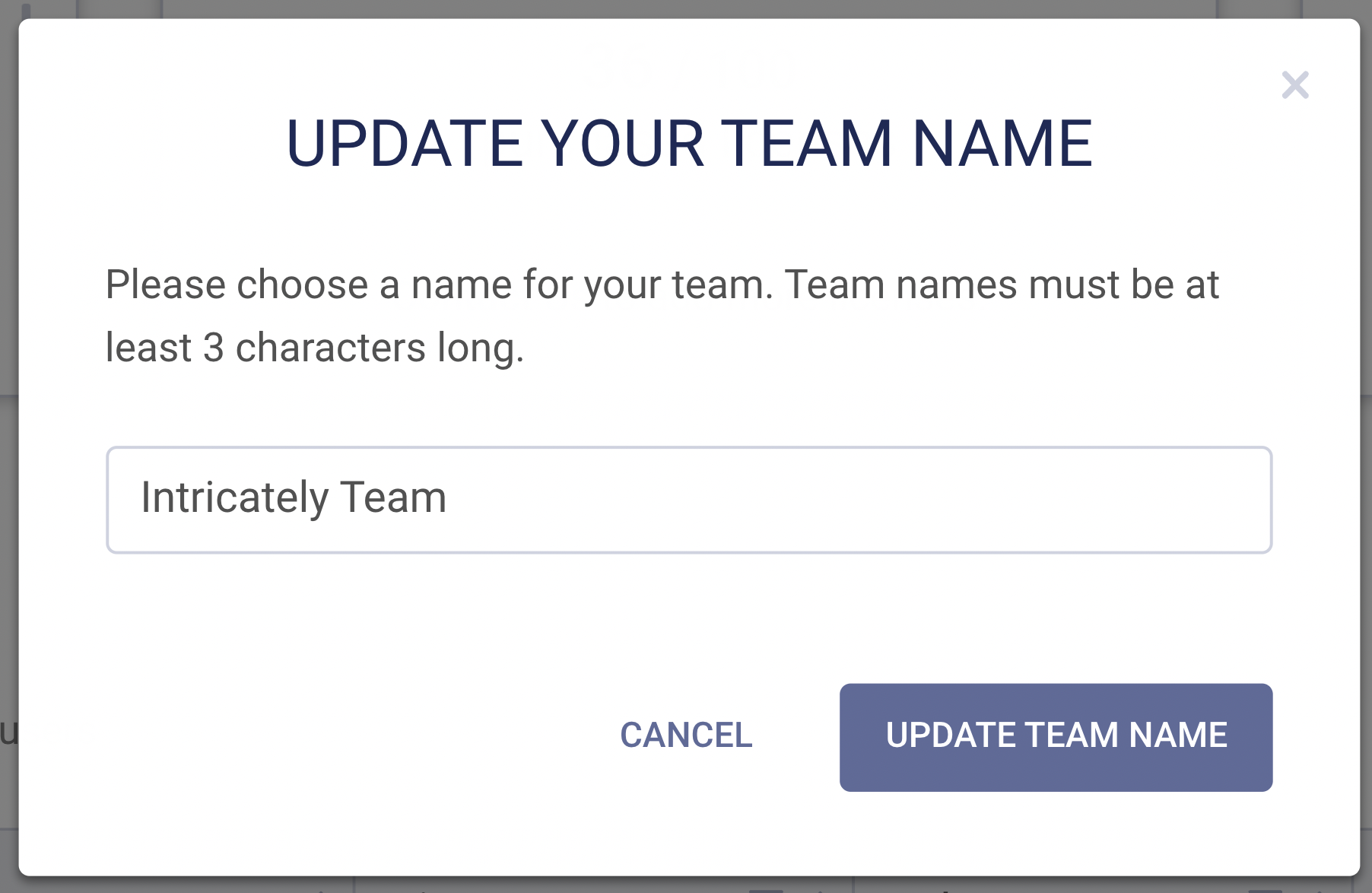
Updating your team name
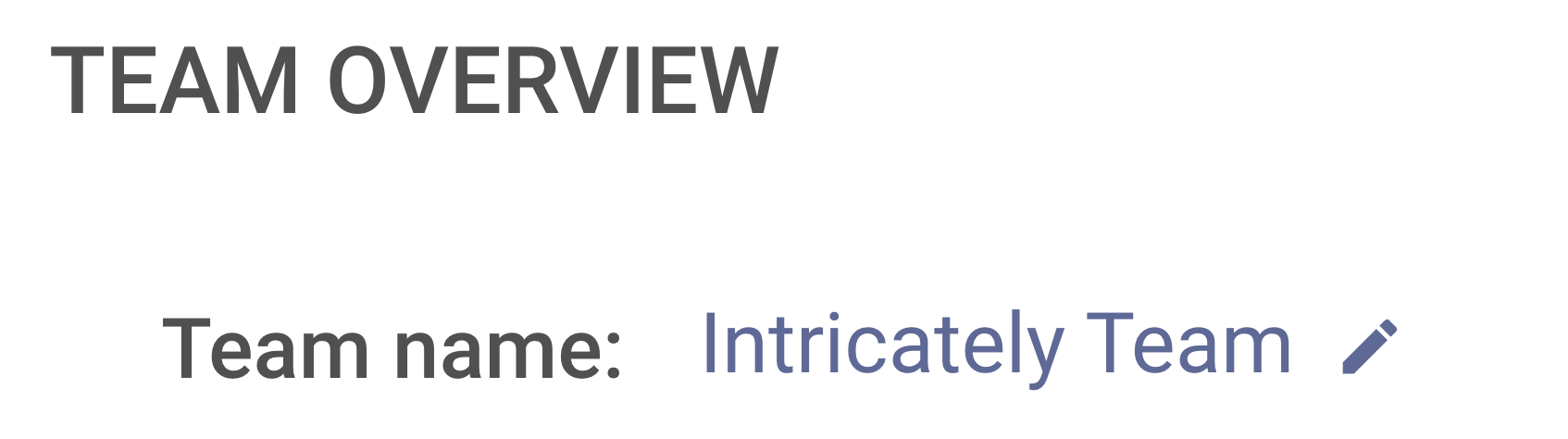
You can edit your Team Name by clicking on the pencil icon:
Managing licenses
You can track your licenses in the Team Overview section:

- Licenses in Use shows the total number of licenses for your team and remaining licenses that have not yet been assigned to a user.
Need to add additional licenses? The Team Owner is able to purchase additional licenses - or click Contact Us and we can help!
Please note: If you are an Enterprise user – or if your team has already purchased the maximum number of self-service licenses (25) – you'll need to contact us at support@intricately.com for assistance.
Inviting team members
Collaborate with peers and colleagues in Intricately by clicking Invite Users in the Team Members section:

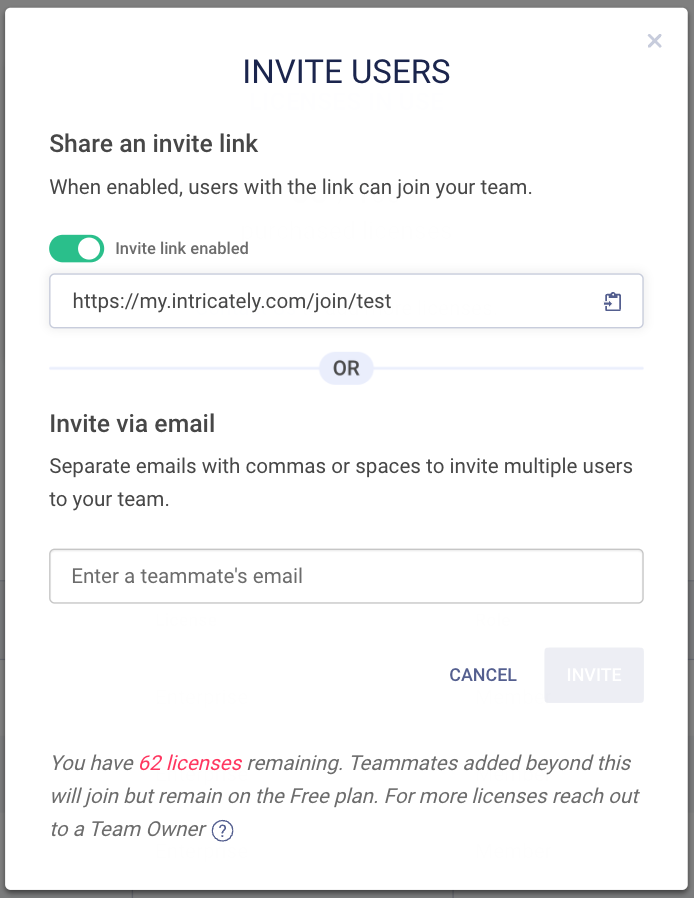
This will open a window displaying your invite options:
Invite Links
If you choose to enable invite links, you’ll be able to copy your team's invite link and share it manually. Anyone clicking the link will be prompted to activate their account and will then be added to your team.
Email Invites
You can also invite teammates by entering their email addresses. Intricately will automatically send them an email with the invite link.
If your team has available licenses, invited users will automatically be granted a license. If no licenses remain, users will still be able to join the team, but they'll be assigned a Free plan.
Managing users
You can leverage the Team Members section to manage team access, license allocation, and permissions for your users.
To manage users, simply select the name of the user(s) you’re looking for. This will open the menu of available Admin Actions:
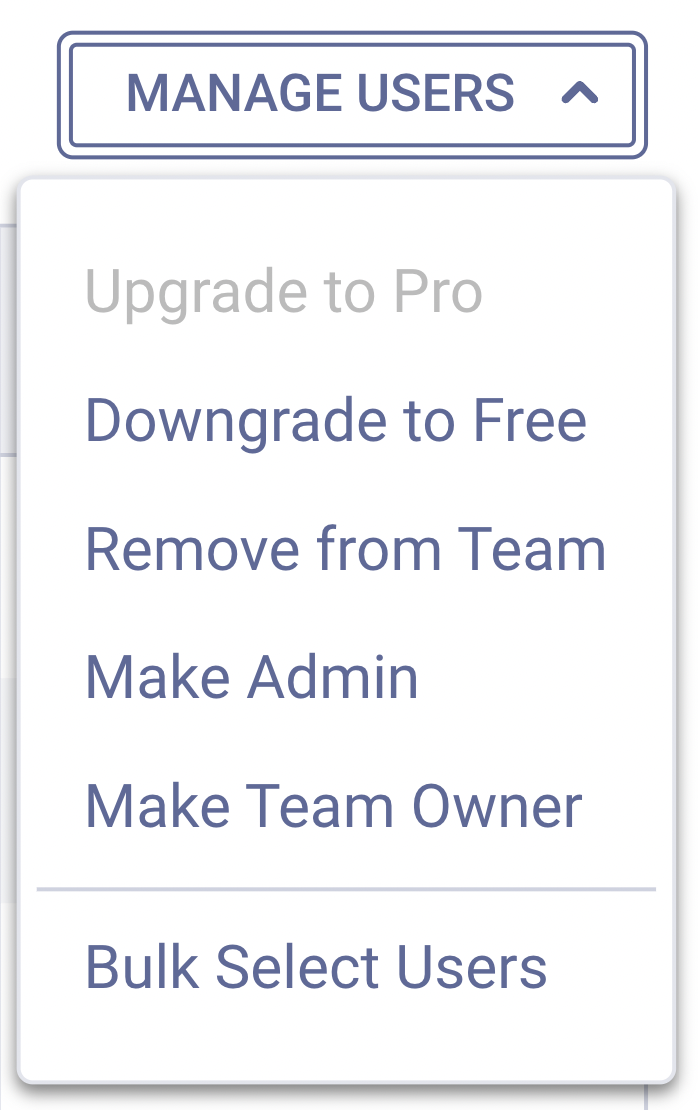
Please note: available Admin Actions are dependent on whether you are a standard user, Team Admin or Team Owner.
Managing team access
You can remove a user by selecting the Remove from Team option. This will immediately remove them from the team and free up their license (if they were assigned one).
Managing license allocation
-
Select Upgrade to Enterprise/Upgrade to Pro to assign the selected user(s) available licenses.
-
Select Downgrade to Free to assign the selected user(s) a Free plan. This will make the user’s previously paid-for license available to others.
Managing permissions
Each user on the team can be assigned a role, based on permissions set by the admin. The Team Owner enjoys the highest level of account permissions and customization.
|
|
Member |
Team Admin |
Team Owner |
|
Access Intricately data & tools |
✔ |
✔ |
✔ |
|
Access Team Administration |
✖ |
✔ |
✔ |
|
Assign licenses |
✖ |
✔ |
✔ |
|
Access Team invoices |
✖ |
✔ |
✔ |
|
Purchase licenses |
✖ |
✖ |
✔ |
|
Manage Team billing |
✖ |
✖ |
✔ |
Select the appropriate admin action to demote or promote a user:
-
Make Admin: Make the user an admin.
-
Revoke Admin Access: Demote an admin to a member.
-
Make Owner: Make the user a team owner
-
Revoke Team Owner: Demote the owner to a member.
Usage tracking and reporting
Wondering if you can track how team members are using Intricately? We’ve got you.
The Product Usage section gives you an at-a-glance view into your team's overall usage, with insights into:
-
Reports viewed
-
Records exported (across Smart Lists and Enrichments)
-
Smart Lists created
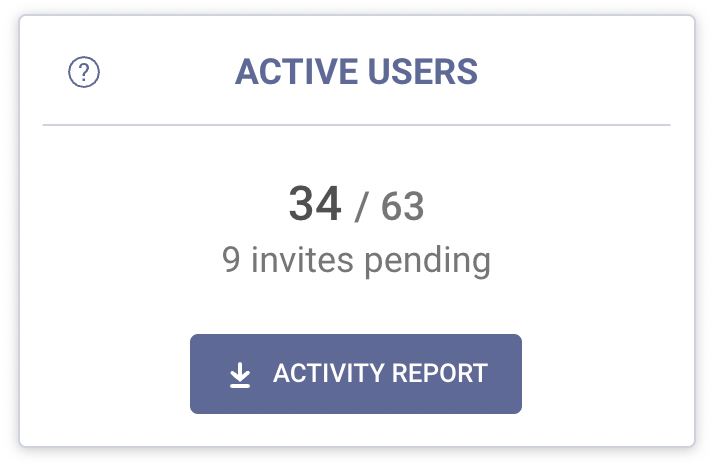
For a more comprehensive look, you can export a full report by clicking Generate Activity Report under Team Overview. Intricately will assemble the usage report and email it to you when it's ready – it’s that easy!